For sales teams, customer success managers, and service professionals who spend significant portions of their day in both Gmail and Salesforce, the friction of working across two separate platforms is a constant productivity drain. An email arrives in Gmail from a prospect — to log it in Salesforce, the rep copies the content, switches platforms, finds the right record, and manually creates an activity. A customer replies to a proposal — the account manager has to remember to update the opportunity stage in Salesforce before the next forecast meeting. A support case is resolved over email — the resolution never makes it into the case record because the agent forgot to log it.
These small inefficiencies compound into significant lost productivity, incomplete CRM data, and missed opportunities for the AI-powered insights that Salesforce can only generate when it has complete, accurate activity data to work with.
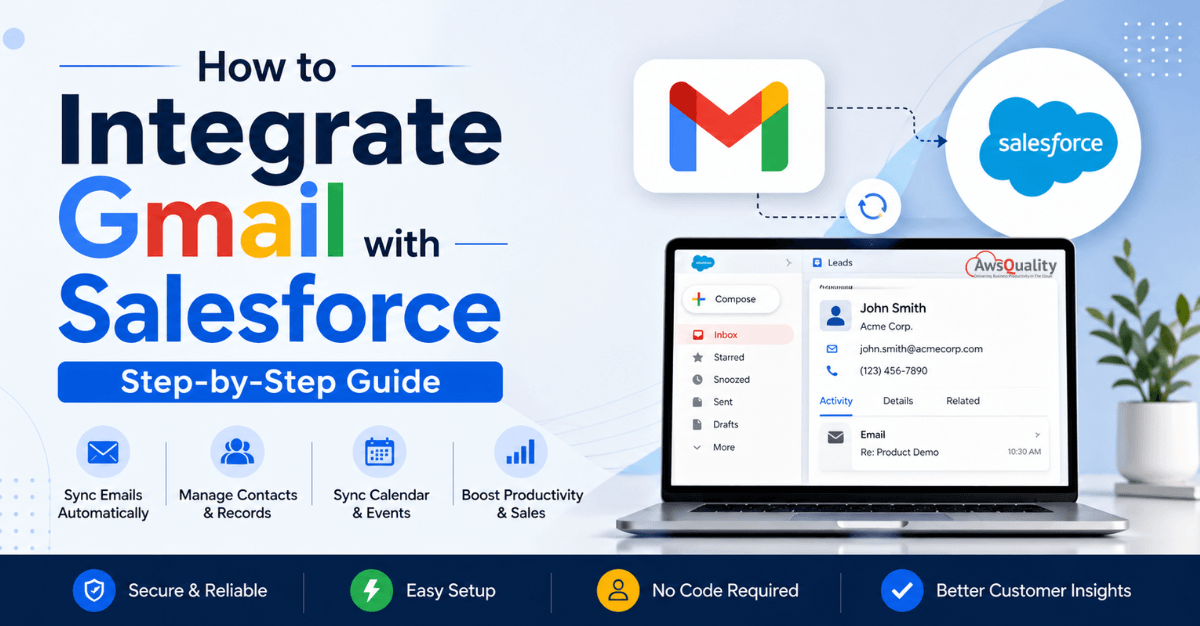
Gmail and Salesforce integration solves all of this by connecting the two platforms so that emails, calendar events, and contact information flow between them automatically — and so that Salesforce context is available directly within Gmail without switching applications. In 2026, the integration has matured into one of the most seamless and powerful productivity enhancements available to Salesforce users, powered by Salesforce's Einstein AI capabilities and the native Gmail integration tools built into Google Workspace
In this guide, you’ll learn how to integrate Gmail with Salesforce step-by-step, along with best practices, benefits, and troubleshooting tips.
What is Gmail–Salesforce Integration?
Gmail–Salesforce integration allows you to connect your Gmail account with Salesforce so you can:
- View Salesforce records inside Gmail
- Log emails automatically to CRM
- Sync contacts and events
- Track email interactions
This integration is powered by tools like:
- Salesforce Gmail Integration (native)
- Salesforce Inbox (advanced features)
Read: From Leads to Cash - How SAP + Salesforce Integration Transforms Your Pipeline
Benefits of Gmail and Salesforce Integration
1. Centralized Communication
All emails are automatically linked to leads, contacts, and opportunities.
2. Improved Productivity
No need to switch between Gmail and Salesforce.
3. Better Data Accuracy
Automatic email logging reduces manual errors.
4. Real-Time Insights
Track customer interactions directly from your inbox.
5. Enhanced Sales Efficiency
Sales teams can respond faster with full customer context.
Methods to Integrate Gmail with Salesforce
There are two main ways:
1. Native Gmail Integration (Recommended)
- Free and built into Salesforce
- Works via Chrome extension
- Ideal for most businesses
2. Salesforce Inbox (Premium)
- Advanced features like email tracking & scheduling
- Requires additional licensing
Also read: Salesforce Integration Strategy for Modern Enterprises
Prerequisites Before You Begin
Before starting the integration setup, confirm the following prerequisites are in place.
- A Salesforce account with System Administrator permissions
- — you will need admin access to enable features, configure settings, and install packages in your Salesforce org.
- Google Workspace
- — the Gmail-Salesforce integration is designed for Google Workspace business accounts. While personal Gmail accounts can use some integration features, the full capability set is optimized for Google Workspace environments.
- Salesforce edition compatibility
- — Lightning for Gmail is available on most Salesforce editions. Einstein Activity Capture and Salesforce Inbox require specific editions or add-on licenses. Verify your current edition and license entitlements in Salesforce Setup before proceeding.
- Users on Lightning Experience
- — the Gmail integration is designed for Salesforce Lightning Experience. Users still on Salesforce Classic will need to be migrated to Lightning before they can use the Gmail integration effectively.
- Chrome browser
- — the Salesforce Chrome extension that powers much of the Gmail integration experience requires Google Chrome. Users on other browsers will have access to Gmail add-on versions of the integration with slightly different feature availability.
Check out: External Services in Salesforce - Connect Any REST API Without Writing a Line of Apex
Step-by-Step: How to Integrate Gmail with Salesforce
Step 1: Enable Gmail Integration in Salesforce
- Go to Setup in Salesforce
- Search for “Gmail Integration and Sync”
- Enable:
- Gmail Integration
- Use Enhanced Email
Step 2: Enable Einstein Activity Capture (Optional but Recommended)
This feature automatically syncs emails and calendar events.
- In Setup, search for Einstein Activity Capture
- Turn it ON
- Connect your Gmail account
Step 3: Install Salesforce Extension for Gmail
- Open Google Chrome Web Store
- Search for Salesforce extension for Gmail
- Install the extension
👉 This adds a Salesforce panel inside Gmail.
Step 4: Log in to Salesforce from Gmail
- Open Gmail
- Click the Salesforce icon (right sidebar)
- Log in to your Salesforce account
Step 5: Connect Gmail Account
- Authorize permissions
- Allow access to email and calendar
Step 6: Start Using Integration Features
Now you can:
- Attach emails to Salesforce records
- Create new leads/contacts from Gmail
- View CRM data without leaving inbox
- Log emails automatically
Also check: 5 Proven Salesforce Integration Methods to Power Business Growth
Troubleshooting Common Gmail-Salesforce Integration Issues
Even well-configured integrations encounter issues. Here are the most common problems and their resolutions.
- Emails not appearing in Salesforce activity history is the most frequently reported issue and has several possible causes. Einstein Activity Capture typically syncs with a delay of two to five minutes — if the email was sent recently, waiting a few minutes often resolves the issue. If the delay persists, verify that the sender or recipient email address matches the email address on a Salesforce contact or lead record exactly — even a minor variation (an alias, a different domain for the same person) will prevent the association. Also verify that the user's Gmail account is still connected by navigating to their Personal Settings and checking the Gmail account connection status.
- The Salesforce sidebar is not appearing in Gmail is almost always a Chrome extension issue. Verify that the Salesforce extension is installed and enabled in Chrome's extension manager. Try disabling and re-enabling the extension, or uninstalling and reinstalling it. Verify that the user is logged into the correct Salesforce account within the extension — in organizations with multiple Salesforce orgs, users sometimes find the extension is connected to the wrong org.
- OAuth authentication errors occur when Google's authorization token expires or when Google Workspace policies change in ways that affect third-party application access. The resolution is almost always to re-authenticate — navigate to Personal Settings in Salesforce, find the Gmail account connection, disconnect it, and reconnect by going through the OAuth flow again. If authentication errors persist for multiple users simultaneously, check whether a Google Workspace administrator has changed application access policies.
- Calendar events not syncing to Salesforce is usually a settings issue — verify that calendar sync is enabled in the Einstein Activity Capture settings and that the affected user has the correct permission set assigned. Also check whether the calendar event includes at least one attendee whose email address matches a Salesforce contact or lead — events with no recognized attendees are not associated with any Salesforce record and may not be captured depending on your sync settings.
- Duplicate activity records appearing in Salesforce can occur when both Einstein Activity Capture and manual logging are used for the same email — the user logs the email manually through the sidebar and Einstein Activity Capture also creates an automatic record. Address this through user training — clarifying when manual logging is needed versus when automatic capture handles it — and consider disabling manual email logging for users with Einstein Activity Capture enabled if duplicate records become a persistent issue.
Read: 15 Salesforce Consulting Partner Tips - Guide to Smart Integration
Key Features You Can Use
Email Logging
Automatically or manually save emails to Salesforce.
Contact Creation
Create leads directly from incoming emails.
Calendar Sync
Sync meetings between Gmail and Salesforce.
Activity Tracking
Track email opens (with Salesforce Inbox).
Security Considerations
When integrating Gmail with Salesforce:
- Use OAuth authentication
- Enable two-factor authentication (2FA)
- Control access via user permissions
- Monitor data sharing policies
Best Practices
- Enable automatic email logging carefully
- Train users on when to log emails manually
- Keep contact records clean
- Regularly audit integration settings
- Use Salesforce Inbox for advanced workflows
Also read: Salesforce Integration Companies vs. In-House Teams - What Works Better?
Gmail Integration vs Salesforce Inbox
| Feature | Gmail Integration | Salesforce Inbox |
|---|---|---|
| Cost | Free | Paid |
| Email Logging | Yes | Yes |
| Email Tracking | No | Yes |
| Scheduling | No | Yes |
| Advanced Features | Limited | Advanced |
Real-World Use Case
A sales team receives leads via Gmail.
With integration:
- Emails are automatically logged in Salesforce
- New leads are created instantly
- Sales reps view customer history inside Gmail
- Follow-ups are faster and more personalized
👉 Result: Higher conversion rates and better efficiency
Future of Gmail–Salesforce Integration
With AI advancements in Salesforce:
- Smart email suggestions
- Automated follow-ups
- Predictive insights
Integration will become even more powerful and intelligent.
Conclusion
Integrating Gmail with Salesforce is one of the easiest ways to improve productivity and streamline communication.
By following this step-by-step guide, you can:
- Connect Gmail in minutes
- Automate email tracking
- Improve sales efficiency
- Enhance customer engagement
Whether you’re a sales rep, admin, or business owner, this integration is a must-have for modern CRM workflows.
Frequently Asked Questions
1. Is Gmail integration with Salesforce free?
Yes, the native Gmail integration is free. Advanced features require Salesforce Inbox.
2. Do I need technical skills to integrate Gmail with Salesforce?
No, the setup is simple and does not require coding.
3. Can I sync Gmail contacts with Salesforce?
Yes, using Einstein Activity Capture.
4. Is Gmail–Salesforce integration secure?
Yes, it uses secure authentication methods like OAuth.
5. Can I track emails in Gmail using Salesforce?
Yes, but advanced tracking requires Salesforce Inbox.
 Bio
Bio