
Data synchronization is the backbone of any successful CRM integration. When your systems are connected but not aligned, the result is inconsistent data, broken workflows, and poor decision-making.
For businesses using Salesforce as a central system, data sync issues can quickly become a serious operational challenge—especially when integrating with marketing tools, ERPs, customer support systems, or custom applications.
In this guide, we’ll explore why data sync issues happen, how to identify them, and most importantly—how to fix and prevent them.
What Are Data Sync Issues in Salesforce Integrations?
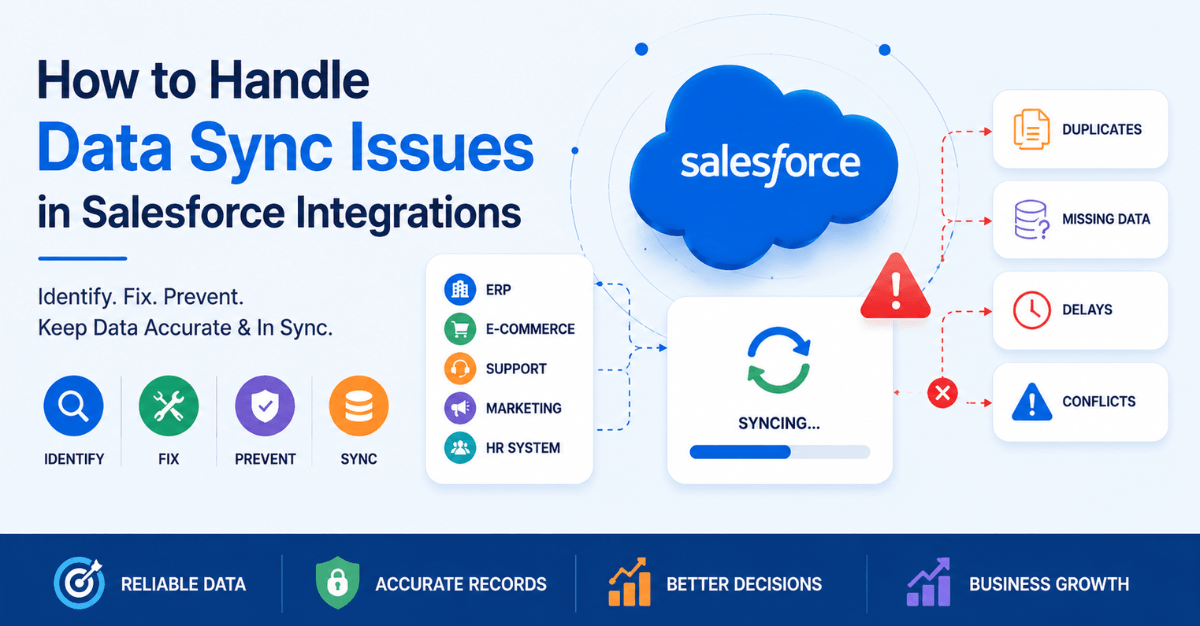
Data sync issues in Salesforce integrations occur when records, fields, or transactions fail to transfer accurately and consistently between Salesforce and an external system — such as an ERP, marketing platform, e-commerce tool, or custom application. These issues range from silent failures (records that simply don’t appear) to loud ones (duplicate records flooding your CRM), and they can affect sales pipelines, reporting accuracy, automation logic, and customer experience.
This can include:
- Duplicate records
- Missing data
- Delayed updates
- Conflicting information
Understanding how to handle them systematically is one of the most critical skills for any Salesforce administrator, developer, or architect working in a connected ecosystem.
Read: WhatsApp for Salesforce – Transform Customer Conversations Without Leaving Your CRM
Why Data Sync Fails: Root Causes at a Glance
Before jumping to fixes, it helps to understand the most common reasons data sync breaks down in Salesforce integrations:
- API limits and governor limits — Salesforce enforces strict per-org and per-transaction limits that, when hit, cause operations to fail silently or with cryptic errors.
- Field mapping mismatches — External systems use different field names, data types, or picklist values that don’t map cleanly to Salesforce objects.
- Duplicate record creation — Lack of a reliable external ID or upsert key causes integrations to create new records instead of updating existing ones.
- Trigger and automation conflicts — Salesforce validation rules, Process Builder flows, Apex triggers, and duplicate rules can block incoming records.
- Authentication and session failures — Expired OAuth tokens or Connected App misconfiguration silently break data flows.
- Race conditions and timing issues — Parallel processes trying to update the same record simultaneously result in lock errors or data overwrites.
- Payload size and bulk limits — Oversized payloads or non-bulk API calls fail under high data volume.
- Network and timeout errors — Integration middleware or callout timeouts interrupt transactions midway.
Also read: How to Integrate Gmail with Salesforce (Step-by-Step Guide)
How to Handle Data Sync Issues in Salesforce Integrations
1. Establish a Reliable External ID Strategy
The single most important step in preventing sync issues is using External IDs correctly. Without a reliable way to match an incoming record to an existing one in Salesforce, your integration will create duplicates on every sync.
What to do
- Mark one field on each Salesforce object as
External IDandUnique. This is typically the primary key from the source system (e.g.,ERP_Account_ID__c, Shopify_Order_ID__c). - Use the Upsert operation in the Salesforce Bulk API or REST API instead of separate Insert/Update calls. Upsert matches on the External ID and updates if found, inserts if not.
- Never rely on
Name,Email, or other non-unique fields as matching keys unless you have strict deduplication logic in place.
Example: REST API Upsert by External ID
PATCH /services/data/v59.0/sobjects/Account/ERP_Account_ID__c/001x…
This call finds the Account where ERP_Account_ID__c = ACC-10045 and updates it — or creates it if no match exists.
2. Use the Bulk API for High-Volume Sync
The standard Salesforce REST and SOAP APIs process records synchronously and are subject to per-transaction limits. For any sync involving more than a few hundred records, you should use the Bulk API 2.0.
Why it matters
- Bulk API 2.0 processes records asynchronously in batches, avoiding per-call API limits.
- It supports up to 100 million records per rolling 24-hour window (org-dependent).
- Failed records are reported individually in the results file, allowing partial-success handling without aborting the entire job.
Best practices
- Break large datasets into jobs of 10,000–50,000 records for optimal throughput and easier error recovery.
- Always poll job status rather than assuming completion — jobs can take minutes to hours depending on volume.
- Download and inspect the failed results file after every job. Even a “completed” job may have individual record failures.
- Use
allOrNone: falsein REST API calls to allow partial success — otherwise a single bad record rolls back the entire transaction.
Check out: From Leads to Cash – How SAP + Salesforce Integration Transforms Your Pipeline
3. Handle Governor Limits Proactively
Salesforce governor limits are hard ceilings enforced per transaction. Hitting them doesn’t just slow your integration — it throws exceptions that can corrupt data if not handled correctly.
The limits you’re most likely to hit
| Limit | Value | Common Trigger |
|---|---|---|
| SOQL queries per transaction | 100 | Poorly optimized triggers firing on bulk updates |
| DML statements per transaction | 150 | Nested automation or multiple trigger paths |
| Heap size | 6 MB (sync) / 12 MB (async) | Large payload deserialization |
| Callouts per transaction | 100 | Outbound integrations calling multiple endpoints |
| CPU time | 10,000 ms (sync) | Heavy computation in triggers |
What to do
- Bulkify all Apex triggers. Never perform SOQL queries or DML inside a for loop. Collect record IDs, query once outside the loop, and process in bulk.
- Use Platform Events or Queueable Apex to move heavy processing out of synchronous transactions.
- Implement chunking in your middleware. If your ETL or iPaaS tool sends records in batches of 200, align with Salesforce’s own DML batch size to minimize trigger invocations.
- Monitor with Salesforce Optimizer and Event Monitoring to catch limit violations before they impact production.
4. Build Idempotent Integration Logic
An idempotent operation produces the same result whether it runs once or ten times. This is essential in integrations because retries — due to timeouts, network blips, or failures — are inevitable.
How to make your sync idempotent
- Always upsert on External ID rather than insert unconditionally.
- Store a sync timestamp or version number on the Salesforce record and check it before writing. If the incoming record is older than what’s in Salesforce, skip the update.
- Log every sync transaction with a unique correlation ID from the source system. This lets you trace exactly which attempt wrote which data.
- In your middleware, implement deduplication at the message level — if the same event is received twice within a short window, discard the duplicate before it reaches Salesforce.
5. Map Fields and Data Types Correctly
Field mapping errors are often invisible until you look closely at the data. A field that silently truncates, misformats, or drops values can corrupt reporting without throwing any errors.
Common mapping pitfalls and fixes
- Date and DateTime formats. Salesforce expects ISO 8601 format (
2025-05-06T14:30:00Z). Many source systems emit Unix timestamps or region-specific formats. Always normalize in your middleware before writing to Salesforce. - Picklist values. If an incoming value doesn’t match an active picklist entry, Salesforce either rejects the record or stores a blank — depending on the field configuration. Maintain a value mapping table in your integration layer and validate picklist values against the Salesforce metadata before writing.
- Phone and currency fields. Salesforce enforces formatting rules on these. Strip non-numeric characters from phone fields and ensure currency values don’t include currency symbols.
- Checkbox / Boolean. Some systems send “
true"/"false” strings, others send 1/0. Explicitly cast to Boolean in your mapping logic. - Text field length. Know the max length of every text field in Salesforce. Truncate or flag values that exceed limits rather than letting the API throw a generic error.
Also check: Salesforce Integration Strategy for Modern Enterprises
6. Handle Authentication Failures and Token Expiry
A large proportion of “mysterious” sync failures trace back to expired or revoked authentication tokens — particularly with OAuth 2.0 Connected Apps.
Best practices for authentication reliability
- Implement automatic token refresh. Use the OAuth 2.0 refresh token flow. Store refresh tokens securely (not in plaintext) and handle invalid_grant errors by triggering a re-authentication flow.
- Monitor Connected App session policies. If your Salesforce org has session timeout policies set to less than your sync interval, tokens will expire between runs. Adjust the Connected App’s session policy or implement refresh proactively.
- Use Named Credentials for outbound callouts from Salesforce. Named Credentials handle OAuth flows natively and automatically refresh tokens, removing the need to manage authentication in Apex code.
- Alert on 401 responses. Your integration middleware should have specific handling for HTTP 401 (Unauthorized) that triggers re-authentication rather than a generic retry.
7. Resolve Trigger and Automation Conflicts
Salesforce’s automation layer — Apex triggers, Flows, Validation Rules, Duplicate Rules — exists to protect data integrity, but it can also block legitimate integration writes if not accounted for.
Diagnosing automation conflicts
When an integration write fails with a validation or DML error, the first thing to check is whether an active rule or trigger is blocking it. The error message usually contains the rule name or a custom error message.
Common conflicts and their solutions:
- Validation Rules blocking required fields. Integration records may arrive without fields that are required by validation rules designed for UI entry. Add an integration-user bypass using a custom permission:
$Permission.Integration_Bypassin the rule criteria. - Duplicate Rules creating false positives. A Duplicate Rule matching on
EmailorNamemay flag legitimate new records. Review Duplicate Rule criteria and set the action toAllowwith an alert rather thanBlockfor integration profiles. - Recursive trigger execution. If an update from the integration fires a trigger that makes another DML operation, which fires the same trigger again, you’ll hit recursion limits. Use a static Boolean flag to prevent re-entry:
public class TriggerHandler {
private static Boolean isRunning = false;public static void run() {
if (isRunning) return;
isRunning = true;
// trigger logic here
isRunning = false;
}
}
- Required lookup fields. If an incoming record references a lookup (e.g., Account on Contact) by name rather than ID, Salesforce won’t resolve it automatically. Your integration layer must query and resolve lookup IDs before writing.
Read: External Services in Salesforce – Connect Any REST API Without Writing a Line of Apex
8. Implement a Dead Letter Queue and Retry Logic
No matter how well-designed your integration is, some records will fail. The question is whether those failures are recoverable — or whether they vanish silently.
Building a fault-tolerant sync pipeline
Dead Letter Queue (DLQ). A DLQ is a holding area for records that failed processing. Rather than discarding them, you store them with the original payload, the error received, and a timestamp. This enables:
- Manual inspection and correction
- Automated retry after a delay (exponential backoff)
- Alerting when failure volume exceeds a threshold
In Salesforce, implement a DLQ using a custom object — for example, Integration_Error_Log__c — with fields for:
Source_System__c— which system sent the recordObject_Type__c— which Salesforce object was the targetPayload__c (Long Text)— the original request payloadError_Message__c— the Salesforce error responseRetry_Count__c— number of retry attempts madeStatus__c— Pending / Retrying / Resolved / Abandoned
Retry strategy. Implement exponential backoff — wait 1 minute before the first retry, 2 minutes before the second, 4 before the third, and so on. Cap retries at 5–7 attempts, then move the record to Abandoned and alert the integration owner.
9. Use Platform Events for Real-Time, Reliable Sync
For integrations requiring near real-time sync, Salesforce Platform Events provide a publish-subscribe messaging model that decouples the sender from the receiver — and includes built-in replay capability.
Why Platform Events help with sync reliability
- Events are stored in Salesforce for 72 hours by default (up to 3 days on higher retention). If your subscriber goes offline, it can replay missed events on reconnect using a Replay ID.
- Publishing an event is a DML operation inside Salesforce, so it participates in transactions. If the transaction rolls back, the event is not published.
- Subscribers process events asynchronously, so heavy processing doesn’t block the original transaction.
When to use Platform Events vs. direct API calls
| Scenario | Recommended Approach |
|---|---|
| External system pushing data into Salesforce | REST/Bulk API with upsert |
| Salesforce pushing changes to external system | Platform Events + subscriber |
| Near real-time bi-directional sync | Platform Events (both directions) |
| Scheduled bulk sync (nightly/hourly) | Bulk API 2.0 |
10. Monitor, Alert, and Audit Continuously
The most dangerous sync issues are the ones you don’t know about. Silent failures — records that don’t sync, updates that don’t apply — can go undetected for days while data diverges between systems.
What to monitor
- API usage dashboard (Setup > System Overview) — track daily API call consumption against your org’s limit.
- Apex Jobs and Scheduled Jobs — confirm async jobs are completing successfully and on schedule.
- Integration Error Log object — build a dashboard on your Integration_Error_Log__c records showing failure rate, error type distribution, and unresolved errors by age.
- Field Audit Trail — for high-value fields (Amount, Stage, Owner), enable Field Audit Trail to track who or what changed them and when.
- Event Monitoring — if on Enterprise or Unlimited edition, use Event Monitoring logs to audit API calls, login activity, and data exports.
Set up proactive alerts
- Configure a Salesforce Report Subscription on your error log dashboard to email the integration owner daily if unresolved errors exist.
- Use a Flow or Apex trigger to send a Slack or email notification when a new error log record is created with
Status__c = 'Abandoned'. - Integrate your middleware’s health metrics (success rate, latency, queue depth) into a centralized monitoring tool like Datadog, New Relic, or a custom dashboard.
11. Test Sync Logic Thoroughly Before Production
Many sync issues are preventable with rigorous pre-production testing. The tricky part is that integration behavior at scale is often very different from behavior in a developer sandbox.
A testing checklist for Salesforce integrations
- Unit tests for all Apex triggers — cover bulk scenarios (200+ records), empty collections, and mixed success/failure batches
- Test upsert with matching and non-matching External IDs — confirm both insert and update paths work correctly
- Simulate governor limit pressure — use Test.startTest() / Test.stopTest() and large data volumes to confirm triggers behave correctly under load
- Test validation rule bypasses — confirm integration user profile/permission set bypasses all relevant rules
- Replay a DLQ failure — verify that failed records can be reprocessed without creating duplicates
- Test token refresh — deliberately expire a token and confirm the integration re-authenticates correctly
- Full sandbox to production comparison — confirm all custom metadata, named credentials, and permission sets are correctly deployed
Also read: 15 Salesforce Consulting Partner Tips: Guide to Smart Integration
Quick Reference: Common Errors and Their Fixes
| Error | Likely Cause | Fix |
|---|---|---|
| DUPLICATE_VALUE | Missing or incorrect External ID | Add External ID field; switch to Upsert operation |
| UNABLE_TO_LOCK_ROW | Race condition on same record | Implement retry with exponential backoff |
| LIMIT_EXCEEDED | Governor limit hit | Bulkify triggers; use async processing |
| INVALID_SESSION_ID | Expired OAuth token | Implement token refresh; use Named Credentials |
| REQUIRED_FIELD_MISSING | Integration skips required field | Add field to payload; use bypass permission for rules |
| STRING_TOO_LONG | Field value exceeds max length | Truncate in middleware; validate before write |
| FIELD_INTEGRITY_EXCEPTION | Invalid picklist value | Validate against Salesforce metadata before write |
| REQUEST_LIMIT_EXCEEDED | Daily API limit hit | Switch to Bulk API; optimize call frequency |
Salesforce Integration Services for Reliable Data Synchronization
Managing Salesforce integrations becomes increasingly complex as businesses scale. Sync failures, API limits, duplicate records, middleware challenges, and automation conflicts often require specialized expertise.
Professional Salesforce integration services help organizations:
- Build scalable integration architectures
- Configure secure API connections
- Implement real-time and batch synchronization
- Optimize middleware and ETL workflows
- Prevent duplicate and inconsistent data
- Monitor and maintain integration performance
Whether integrating Salesforce with ERP systems, marketing platforms, e-commerce applications, or custom enterprise software, working with experienced Salesforce integration experts can significantly reduce operational risk and improve long-term reliability.
Modern Salesforce integration services often include:
- Salesforce API integration
- MuleSoft integration
- Middleware implementation
- Real-time synchronization
- Data migration and transformation
- Integration monitoring and support
- Custom Salesforce connectors
- Secure enterprise integration architecture
For businesses with complex workflows or high-volume data environments, investing in a scalable integration strategy is essential for maintaining data accuracy and operational efficiency.
Frequently Asked Questions
1. What is the most common cause of data sync issues in Salesforce?
The most common cause is the absence of a reliable External ID strategy, which leads to duplicate record creation instead of updates. Pairing this with missing retry logic means failures accumulate silently over time.
2. How do I prevent duplicate records in Salesforce integrations?
Use the Upsert operation with a unique External ID field that maps to the source system’s primary key. Supplement this with Salesforce Duplicate Rules set to alert (not block) for integration profiles, so you can catch edge cases without hard-stopping the sync.
3. Can Salesforce governor limits cause data loss?
Yes. If a transaction hits a governor limit mid-execution and throws an uncaught exception, any DML operations in that transaction are rolled back. Without a dead letter queue, those records are lost. Always implement error logging and retry logic.
4. What’s the difference between the REST API and Bulk API for sync?
The REST API is synchronous and best for low-volume, real-time operations (individual record updates, lookups). The Bulk API 2.0 is asynchronous and designed for high-volume batch operations (thousands to millions of records). Use REST for real-time triggers and Bulk for scheduled or large batch syncs.
5. How do I handle a sync that partially failed?
Use allOrNone: false in REST API calls to allow partial success. In Bulk API jobs, download the failed-results file after job completion, inspect individual record errors, correct the issues, and resubmit only the failed records.
6. How long does Salesforce store Platform Events for replay?
By default, Platform Events are retained for 72 hours (3 days). Subscribers can replay events using a Replay ID to recover from outages or processing failures within that window.
Summary
Handling data sync issues in Salesforce integrations is not a single fix — it is a set of architectural decisions and operational practices that work together:
- Use External IDs and Upsert to prevent duplicates
- Use the Bulk API for volume; the REST API for real-time
- Bulkify Apex triggers to stay within governor limits
- Build idempotent sync logic that survives retries
- Map fields precisely, especially dates, picklists, and types
- Handle authentication failures with automatic token refresh
- Audit automation conflicts and use bypass permissions for integration users
- Log every failure in a dead letter queue with retry logic
- Monitor continuously with dashboards and proactive alerts
- Test at scale before going to production
Integrations that handle failure gracefully are the ones that earn long-term trust. With these patterns in place, most Salesforce data sync issues become detectable, recoverable, and — eventually — preventable.
 Bio
Bio